Get around the app (dashboard, notifications, feedback)
Where you land, how the app keeps you informed, and where to send us your ideas.
Who this is for: all firm staff.
Steps
The dashboard

- After signing in you land on the dashboard: your at-a-glance counters — overdue tasks, deadlines in the next 7 days, and tasks completed this month — plus your task list. The numbers cover the tasks your role is allowed to see.
Notifications and reminders
- The bell in the top bar shows your notifications (yours only), with mark-as-read and mark-all-read; the notifications page lists them all. In-app notifications are a plan feature.
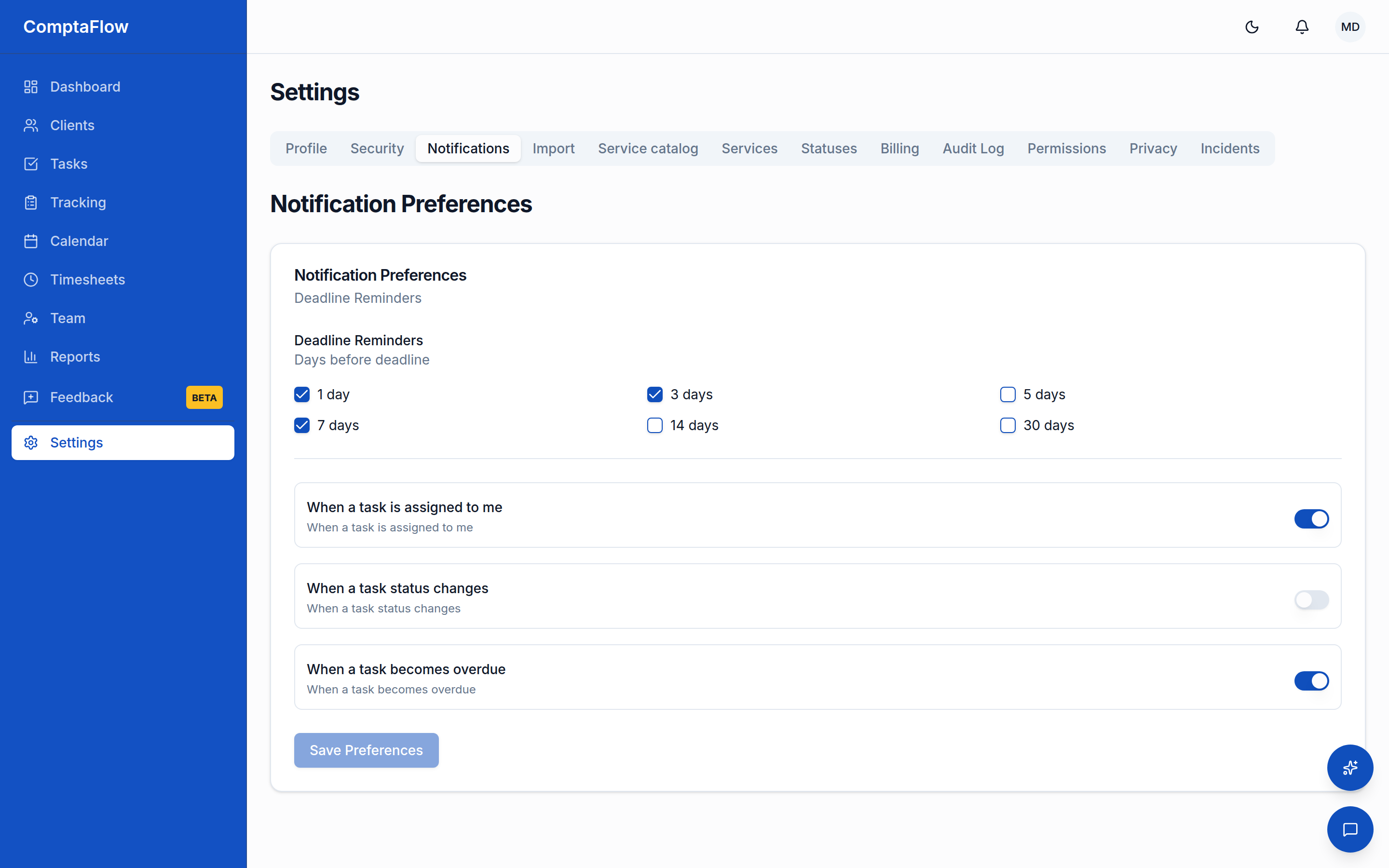
- Deadline reminders arrive when a task's remaining days match your configured lead times — by default 7, 3, and 1 days before the due date. Overdue alerts are opt-in and go to the task's assignee (or to all opted-in staff when the task is unassigned). You never get the same alert twice in one day.
- Tune both in Settings → Notifications: your own lead times (each between 1 and 30 days, at least one) and the overdue opt-in. These are personal settings; each teammate has their own.
Sending feedback
- Open Feedback in the sidebar to post bugs and ideas on the product board. If the embedded board does not load, a direct link opens it in a new tab.
What can go wrong
- If reminder settings will not save: every value must be between 1 and 30 days, and you need at least one.
- If you see no notifications features: your firm's plan does not include in-app notifications.
Limits
- Notifications are personal: you only ever see your own, and your preferences apply to you alone.
- Reminder lead times: integers from 1 to 30 days, at least one required (default 7, 3, 1).